TUI Guide
ocm with no arguments launches a keyboard-driven dashboard modelled on
k9s. This page documents every page, key, and column.
Launch it with:
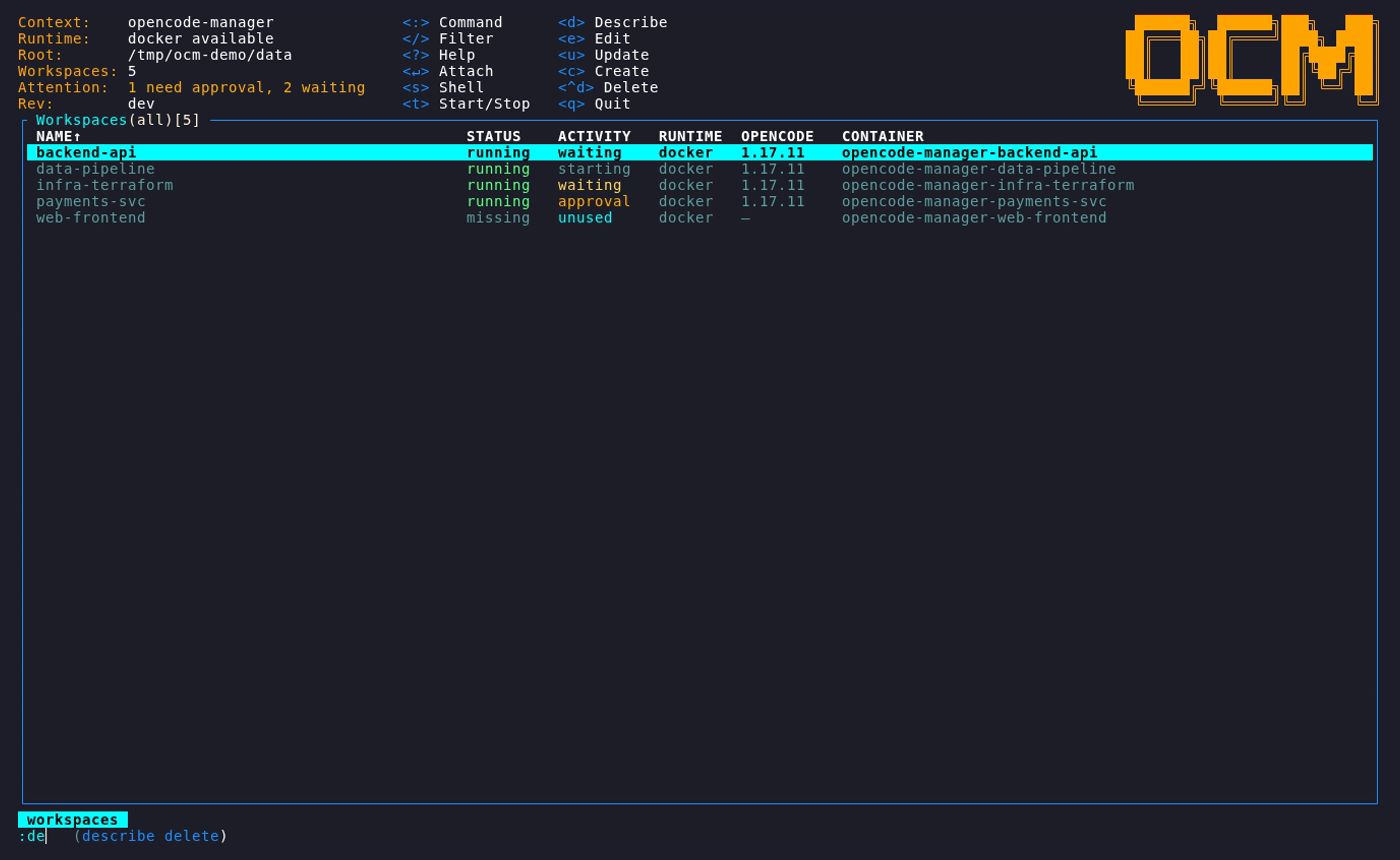
Pages and the : prompt
: opens a command prompt used only to switch views (k9s-style), not as a
general command line. The available views (kinds) are:
| Type | Aliases | Page |
|---|---|---|
:workspaces |
workspace, ws |
The main workspace dashboard. |
:templates |
template, tmpl |
Manage reusable templates. |
Keyboard reference (workspaces page)
| Key | Action |
|---|---|
: |
Switch view (:workspaces, :templates) |
/ |
Filter the list |
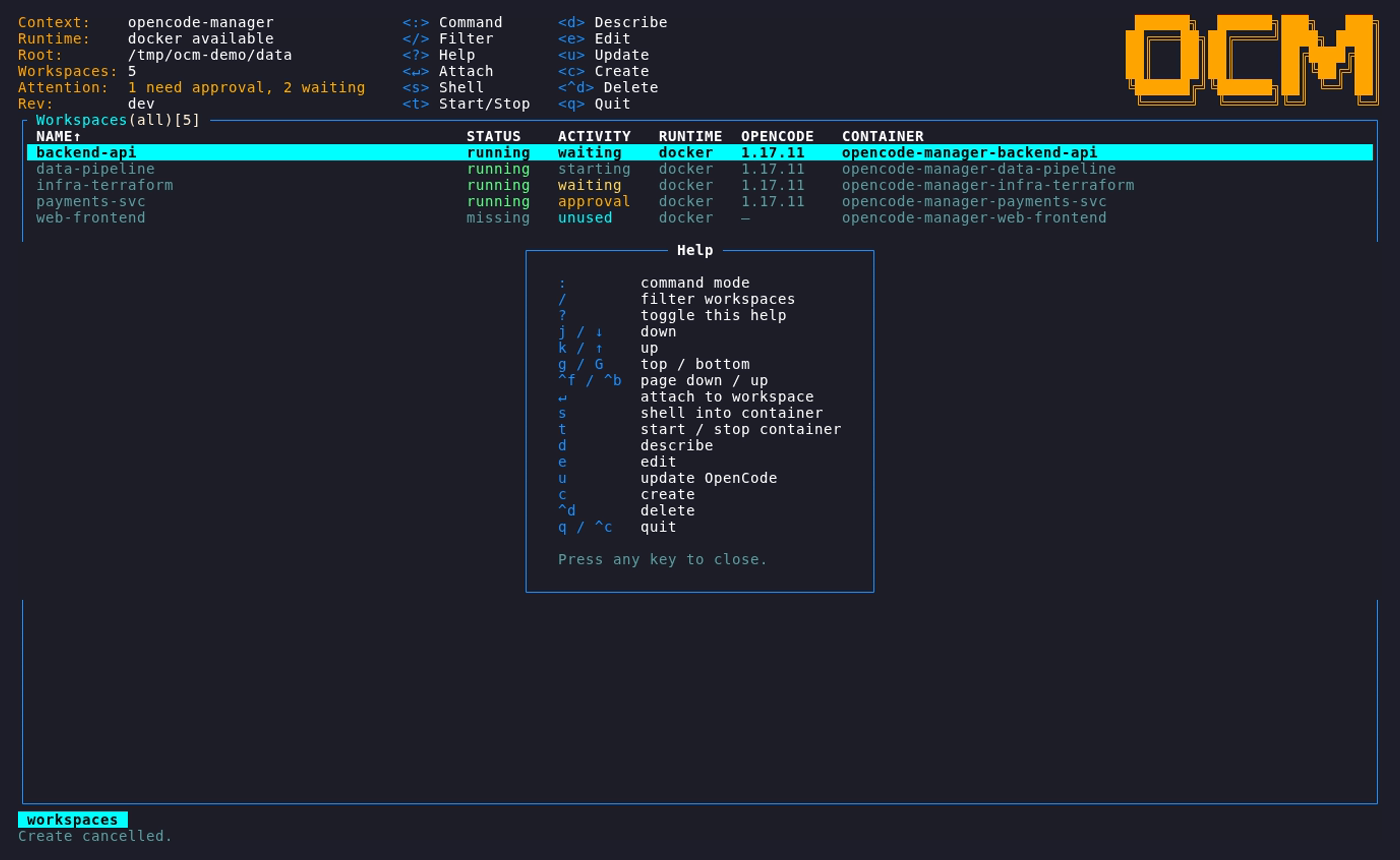
? |
Toggle the help overlay |
j / ↓ |
Move down |
k / ↑ |
Move up |
g / G |
Jump to top / bottom |
^f / ^b |
Page down / page up |
Space |
Select or unselect a workspace. When one or more workspaces are selected, update, delete, start, stop, and recreate apply to that set. |
↵ (Enter) |
Attach to the selected workspace's default agent runtime |
^a (Ctrl+A) |
Open the agent picker, then attach with the selected agent |
i |
Open the opt-in self-improvement workspace (no selection required) |
s |
Open a shell in the workspace container |
t |
Start / stop the container (toggle) |
d |
Describe the workspace (details + token breakdown) |
l |
View the latest OpenCode session's input/output transcript |
e |
Edit the workspace configuration and modules |
u |
Update the workspace base image and replace its container |
r |
Recreate the container: remove it and start a fresh one, keeping the workspace (home, sessions, and modules) |
c |
Create a workspace |
^d |
Delete the workspace |
q / ^c |
Quit |
Multi-selected rows are highlighted green without a prefix in the name column. The focused row stays green when selected and is underlined to distinguish it from the rest of the selection; an unselected focused row is cyan.
Attach (Enter)
Drops you into the selected workspace's default runtime. OpenCode is the default
for existing and newly created workspaces. A DeepSeek Harness workspace opens its
dedicated dsh-tui client and resumes its most recent session for the workspace.
Ctrl+A opens an agent picker listing the workspace's enabled runtimes (the
default preselected); pick one with ↑/↓ and attach with Enter. Claude Code
is available in every workspace; new harnesses added to the manager appear there
automatically.
Returning to the dashboard
Leaving an attached session returns you to the dashboard; the agent keeps
working in the container, and Enter takes you back to it.
| Runtime | Key | What happens |
|---|---|---|
| OpenCode | Ctrl+C |
Closes the OpenCode client; the server, and any running turn, keep going. |
| Claude Code | Ctrl+Q |
Detaches from the live Claude session; the next attach resumes it, even mid-turn. |
Detaching from Claude Code
Claude Code runs inside the container under
dtach, so it keeps working after you leave
it. Press Ctrl+Q to detach and return to the dashboard; the session keeps
running (its status stays live on the dashboard), and the next attach drops you
back into the same session, even mid-turn, with its screen fully redrawn.
Ctrl+C still goes to Claude to interrupt a turn, and quitting Claude (/exit)
ends the session, so the next attach starts a fresh one. Ctrl+Q works on any
keyboard layout and in terminals where Claude enables the kitty keyboard
protocol (kitty, foot, Ghostty, WezTerm…): ocm relays the session and turns
Claude's keyboard modes off while you are on the dashboard, and back on when you
return. The same applies to ocm ws attach <ws> --runtime claude.
A running session keeps the environment it started with: after changing modules,
exit Claude (/exit) and attach again so it starts with the new environment.
Stopping or recreating the container ends the session. Workspace images built before this feature gain
dtach on their next image rebuild; until then Claude runs without detach
support, as before.
Inside dsh-tui
A DeepSeek attach opens the embedded dsh-tui client on the workspace's most
recent DSH session. Beyond the composer, session picker (Ctrl+L), model
picker (Ctrl+M), and @ file references, it provides:
- Dynamic slash commands — every command DSH advertises for the session,
including plugin commands such as
/agent-teams,/compact, or/plan, appears in/completion and theCtrl+Ppalette with its description and input hint, and runs on the host. TUI-local commands (/model,/sessions,/new,/continue,/help,/quit) take precedence on name collisions. - Context meter — the sidebar shows
used / context-window tokens (percent)with the same bounded calculation as DSH Web, updated live through compaction and model switches. Until the host reports both usage and capacity, the plain token count is shown. - MCP section — when DSH's MCP client plugin is loaded, the sidebar lists each configured server with a colored activation dot (green active, amber starting/stopping, red failed, gray disabled). The section is hidden when no MCP plugin is configured.
- AgentTeams DAG — when the
dsh-agent-teamsplugin is installed,Ctrl+X Tor/agent-teams-dagoverlays the team's task graph: tasks layered by dependencies with state markers, assignees, and dependency trails, plus member progress.Enterrefreshes the view. Both the shortcut and the command exist only when the plugin is detected.
Self improvement (i)
Opens or resumes the private OpenCode session when
selfImprovement.enabled is set in config.yaml. It is excluded from the workspace
table and selectors. The agent delegates analysis and proposes several improvements,
retaining minor observations and prior decisions across runs. Use /analyze to
start analysis; /audit-harness and /proposals are also available. Ctrl+C
detaches while work continues; pressing i again resumes the latest conversation
without starting another analysis.
See Self improvement for setup and session coverage.
Shell (s)
Opens an interactive shell inside the workspace container as the workspace user
(passwordless sudo is available). Useful for cloning repos, inspecting state,
or debugging a module.
Describe (d)
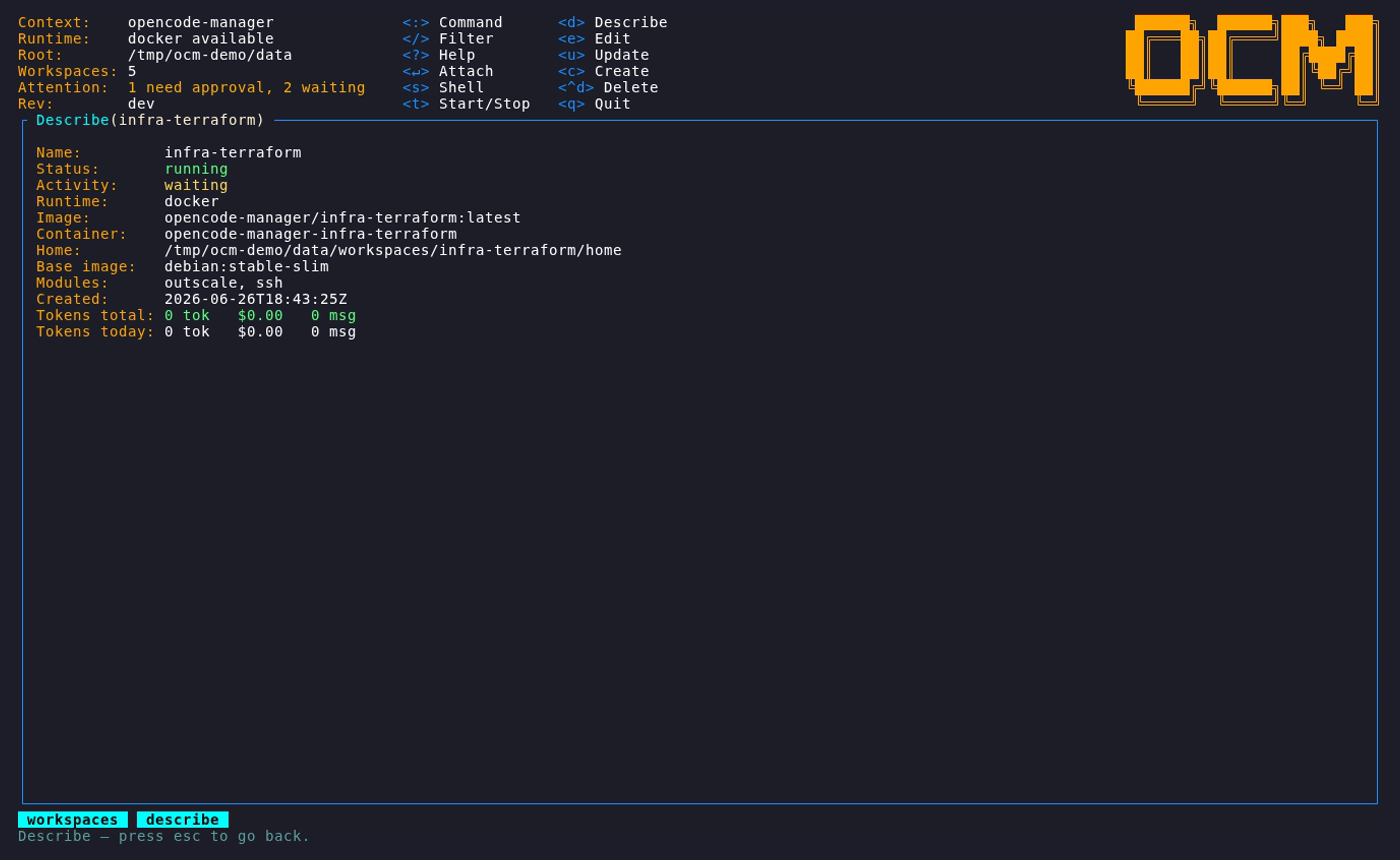
Shows workspace details — status, start time, image, installed modules — and the full token breakdown (input / output / cache-read).
Logs (l)
Shows the selected running workspace's latest OpenCode session without attaching
the OpenCode TUI. The transcript updates live from the OpenCode server event
stream and includes OpenCode text, reasoning, tool output, and todo updates.
Press s to toggle auto-scroll, use ↑/↓ and ^f/^b to scroll, and press
Esc to return to the dashboard.
Edit workspace (e)
Opens the workspace editor. Use ←/→ to change the default agent among the
enabled runtimes; this affects the next Enter attach and does not restart the
container. Modules are shown as a
category browser (a category header with its modules indented beneath), and
/ filters by name, description, or category. See
Modules for what you can add.
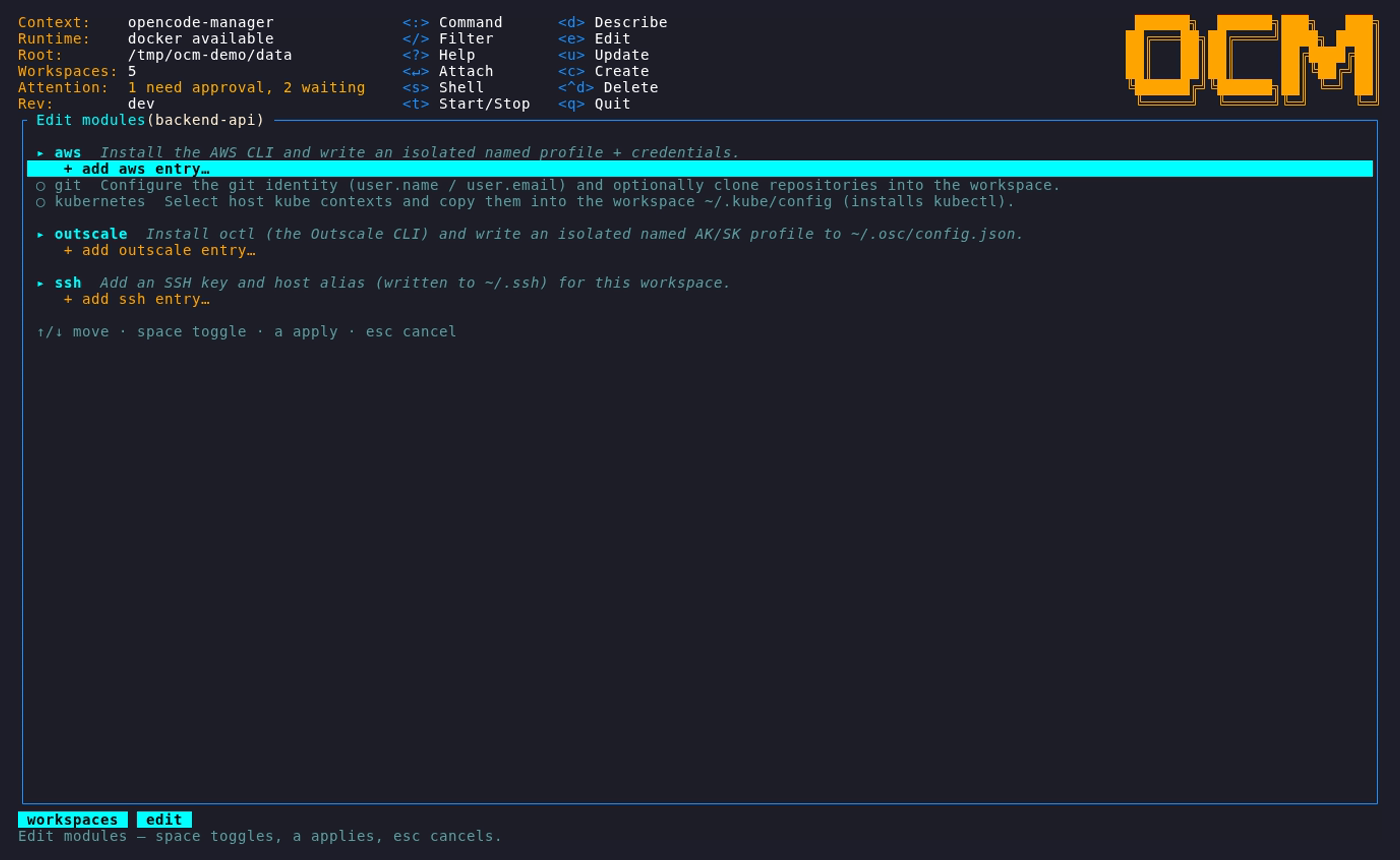
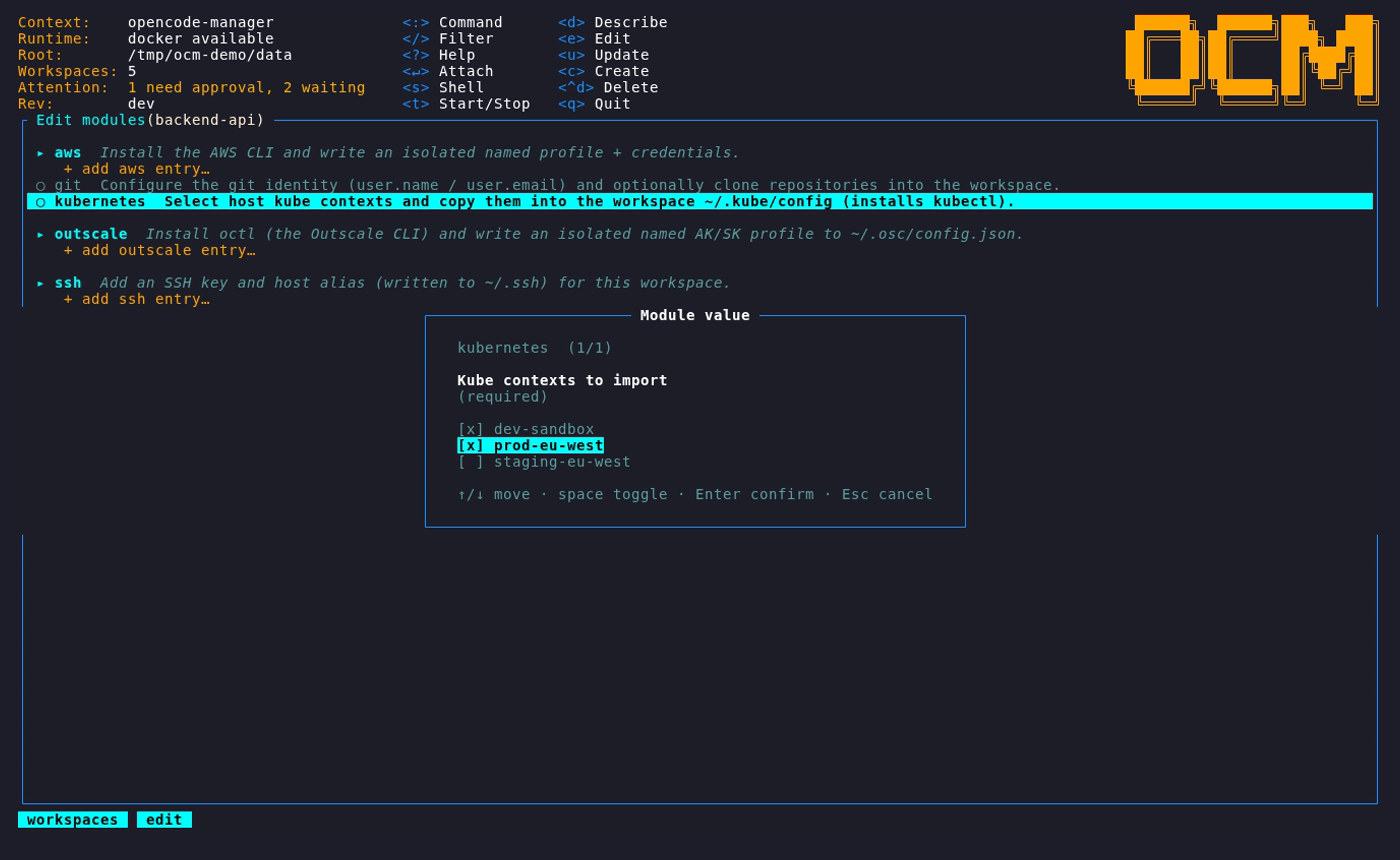
Multi-instance modules show an import picker listing the matching accounts found on your host (AWS/Outscale profiles, SSH host aliases, Kubernetes contexts), plus an Add manually… option:
Create (c)
Opens the New Workspace dialog. Type a name; a compact Default runtime
selector appears under the name. Use Tab to focus it and ←/→ to choose
OpenCode or DeepSeek Harness. Selecting DeepSeek enables it for the new workspace
and makes it the Enter target. If you have templates, a Template selector
appears below it; choose one to pre-install its modules.
Tab/Shift+Tab (or ↑/↓) move between fields and the OK/Cancel buttons;
Enter creates, Esc cancels.
Filtering
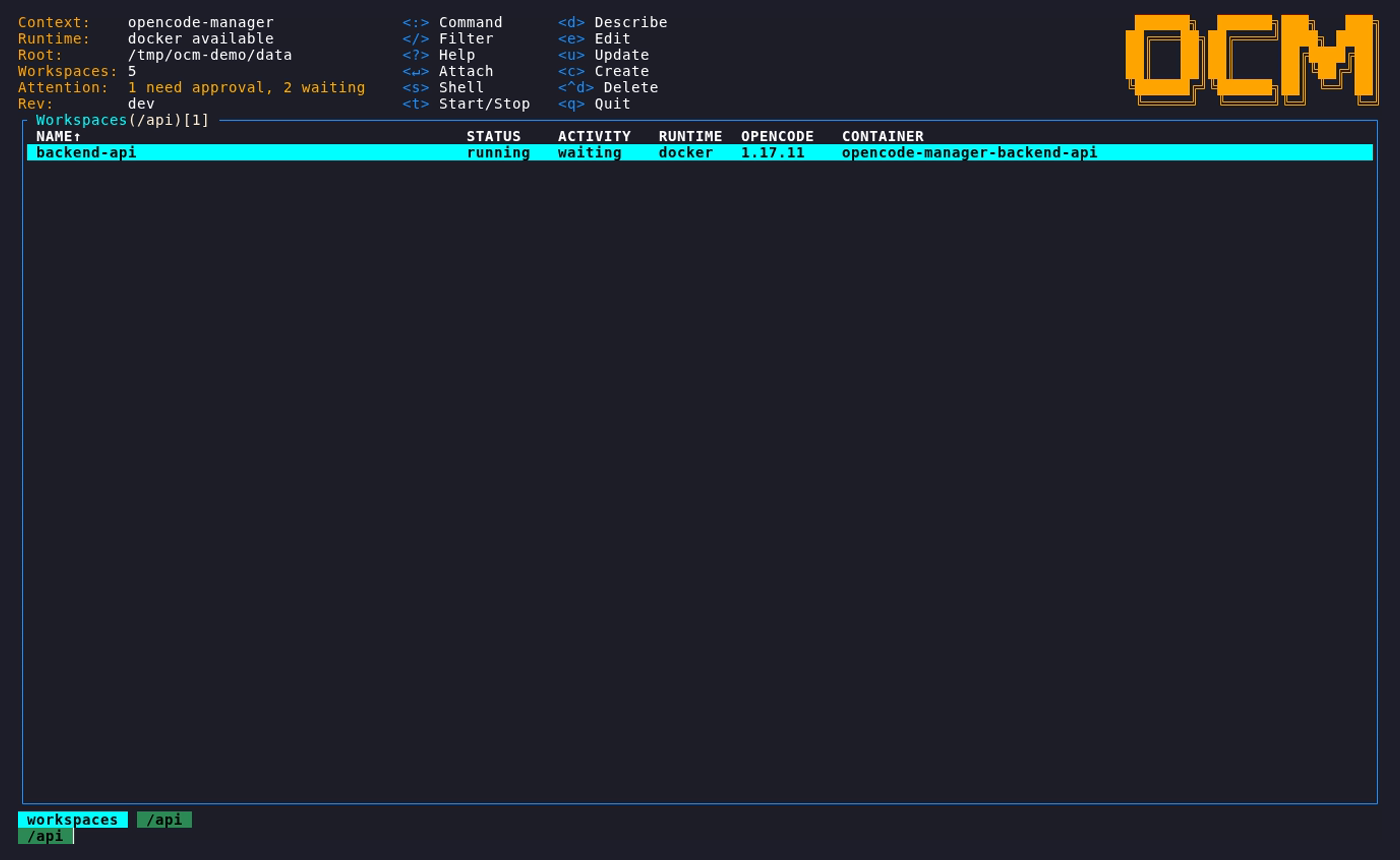
Press / on any list to filter it. On the workspace list it matches workspace
names; in the module editor it matches module name, description, or category.
The TOKENS column
The dashboard table includes a TOKENS I/O/C column showing each workspace's
all-time input / output / cache-read token usage, compacted as k/M/B
(e.g. 12.3k/4.5k/89k). It is measured with
tokscale inside the container
(OpenCode and Claude Code sessions combined), refreshed when a workspace starts and each time it finishes a turn. The full
breakdown is on the describe page (d).
Templates page
Reach it with :templates. It reuses the workspace module editor:
| Key | Action |
|---|---|
c |
Create a template (name it, then pick its modules) |
e / ↵ |
Edit a template |
^d |
Delete a template |
:workspaces |
Return to the workspace dashboard |
See Templates for the full workflow.
Statuses
Workspaces report a lifecycle status in the dashboard (for example creating, working, waiting, sleeping, restarting, paused, removing, dead). A workspace that is waiting for interaction is surfaced on the central dashboard so you can jump straight to it.
Activity is reported by every agent runtime running in the workspace: OpenCode
through its status plugin, DeepSeek Harness through dsh-tui, and Claude Code
through hooks registered in the image's managed settings. When several are
active, the most urgent state wins (waiting over error over working over
sleeping). Claude Code has no hook for a rejected permission or an interrupted
turn, so such a session keeps its last state until the next prompt.